Skip to content
บทความชุด
Apache Spark
Ambari
ElasticSearch + LogStash + Kibana
Python101
Raspberry Pi 3
เตาะแตะไปกับ Docker
Zoom PSU
Zoom Meeting
Zoom Phone
Microsoft 365
Passkey in Microsoft Authenticator
Microsoft Authenticator
How to import/export contact lists
Export contacts from Gmail and import to Microsoft 365
How to redirect email from Gmail to Outlook
How to redirect email from Outlook to Gmail
ยกเลิกการใช้งาน Google เป็น POP3 client
How to install Microsoft 365
Add an email account to Outlook
ย้าย Google Workspace Mail Service มา Office365 Mail Service
Set up email with iOS Mail app
Microsoft 365 FAQ
Workshop
WorkShop : Load Balance Web Server (Server High Availability)
Server Monitoring
Web Hacking and Security Workshop
Google Apps Scripts Workshop – Level 1
Log in
Search
Download and install Office365
Written by
grianggrai.n
in
Desktop Computer (PC, linux, windows, mac)
,
Windows (OS, power shell, etc)
Views:
6,897
สำหรับคนที่ไม่อยากรอ SMS และมีสมาร์ทโฟน เช่น Windows Phone, Android, iOS ให้เลือกตามรูป
Mobile app
คลิก Set up
จะได้หน้า QR code
ให้ติดตั้ง App ที่ชื่อว่า Microsoft Authenticator ในสมาร์ทโฟน
เมื่อติดตั้งเสร็จแล้วเปิด App กดที่เครื่องหมาย
+
แล้วเลือก Work or school account แล้วสแกน QR code ที่ได้
สแกนเสร็จกดปุ่ม Next
QR code
เมื่อดูที่จอมือถือจะได้ประมาณดังรูป
Authentication app
หลังจากกด Next จะได้ดังรูปสังเกตข้อความในกรอบสี่เหลี่ยม แปลว่า App ที่ติดตั้งใช้ได้แล้ว
กด Next
Configured
จะมีการส่งสัญญาณไปที่มือถือเมื่อเปิดดูจะพบข้อความประมาณดังรูป
Approve
ให้กด Approve ในมือถือเพื่อยืนยันการเข้าระบบ
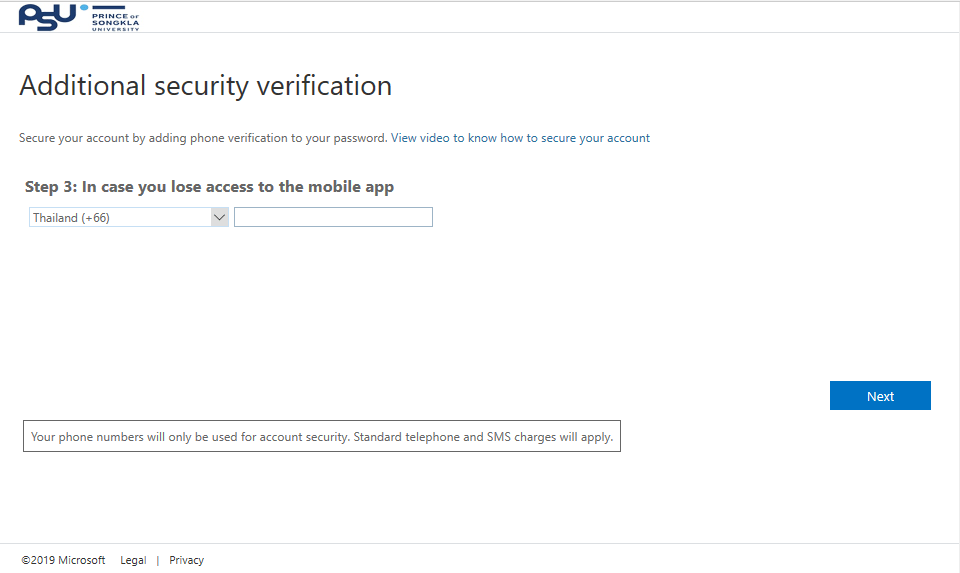
ในขั้นต่อไปให้ เลือกประเทศ และกรอกเบอร์มือถือลงไป แล้วกด Next
Mobile Phone
จะมีการสร้าง Password สำหรับ Application ให้ด้วยในขั้นตอนนี้ ไม่จำเป็นต้องทำอะไรเนื่องจากสามารถสร้างใหม่ได้ตลอดเวลา
App password
ซึ่งทั้งสองวิธีจะถึงหน้านี้ทั้งคู่ ตอบ No หากใช้งานในเครื่องสาธารณะ
Stay signed in?
ขั้นตอนข้างต้นเป็นการเปิด Multi-factor authentication ทำครั้งเดียวใช้งานได้ตลอด
สำหรับคนที่ใช้วิธีการส่ง SMS แล้วต้องเสียเวลารอ SMS นานกว่าจะได้ล็อคอินเข้าระบบ สามารถติดต่อมาเพื่อขอยกเลิก Multi-factor หรือขอรีเซ็ตเพื่อตั้งค่า Application ใหม่ได้ที่
สายภายใน 2082
Pages:
1
2
3
About The Author
grianggrai.n
See author's posts
Views:
6,897
@email.psu.ac.th
download
install
Microsoft
Multi-factor
Office
office365
PSU Passport
←
WPF Layout (Part III)
บริหารจัดการ App Passwords บน Office 365
→
Comments
Leave a Reply
Cancel reply
You must be
logged in
to post a comment.
More posts
เช็คด่วน! ยังมีแอปแปลกปลอมที่เข้าถึง Google Account ของคุณอยู่
August 5, 2026
Library ที่ใช้ในการเชื่อมต่อ OpenID สำหรับภาษาต่างๆ
April 28, 2026
วิธีเชื่อมต่อ OpenID กับ Moodle และการทำ Map field
August 4, 2026
คู่มือการเชื่อมต่อ OpenID Connect ด้วย Pure PHP 2026
April 28, 2026




Leave a Reply
You must be logged in to post a comment.